
Lesson 06
BI Anatomy
Dissect BI tool anatomy: authentication, the semantic layer, dimensions and measures, and API integration in modern BI platforms.
BI Anatomy
Authentication, semantic layer, dimensions/measures, API integration.
What is BI made of?

The old nursery rhyme asks what little boys and girls are made of. This lesson asks the same about a BI platform. Take any enterprise BI tool apart (Tableau, Power BI, SAP BusinessObjects) and you find the same building blocks:
| Component | What it does |
|---|---|
| Authentication and authorization | Who can log in, and what they can see |
| Client (Tableau Desktop) | Where developers and analysts build reports |
| Server (Tableau Server) | Where reports are published, shared and refreshed |
| Semantic layer | Business-friendly model on top of raw tables |
| Visualization templates and tables | Ready-made chart types |
| Dimensions, metrics, calculated fields, filters, hierarchies, parameters | The fields and controls every report is built from |
| Mailing (email, shared folders) | Delivering reports to people |
| Schedule | Refreshing data and sending reports on a timer |
| Alert | Notifying users when a metric crosses a threshold |
| Database, service and file connections | Access to the data sources |
| API | Automating the platform from code |
| Statistical methods | Forecasts, trend lines, clusters |
| Python/R integration | Running custom models inside a report |
| Server and client logs | Troubleshooting and monitoring |
Tools differ in names and UI, but the parts are the same. Learn them once in one tool and you’ll find them in any other.
BI client
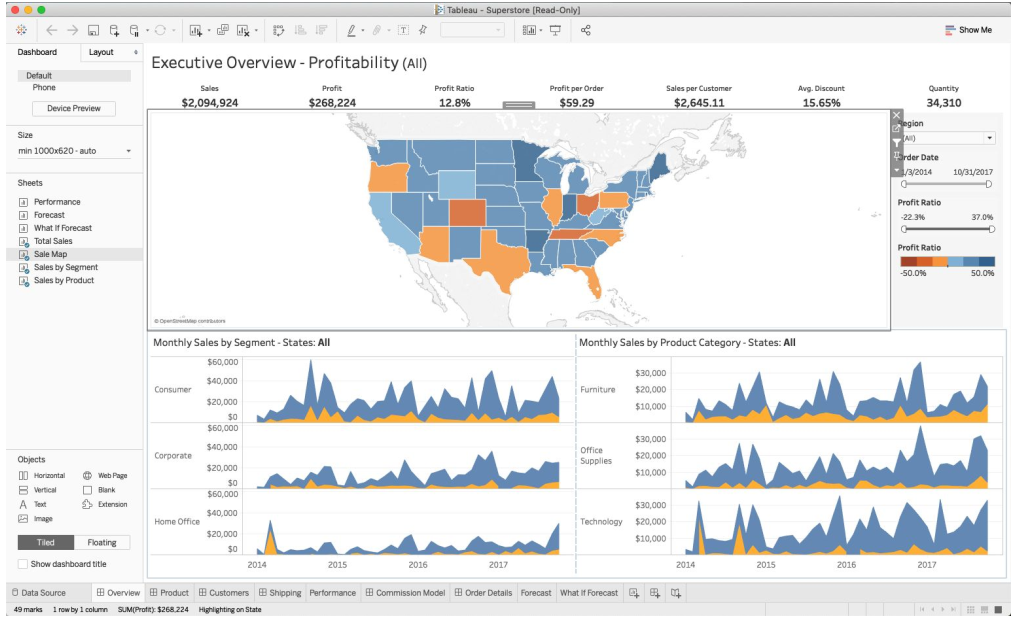
The client is the desktop or web app where you build reports and dashboards. In Tableau it’s Tableau Desktop: you connect to data, drag fields onto a sheet, and combine sheets into a dashboard. A typical example is the Superstore “Executive Overview – Profitability” dashboard: KPI tiles (sales, profit, profit ratio), a profit map by state, and monthly sales by segment and category.
The client is where BI developers and analysts spend most of their time. Business users usually never open it. They consume the finished dashboard on the server.
Authentication
Authentication answers “who are you?”. Enterprise BI servers plug into the company’s existing identity systems:
- Active Directory
- LDAP
- Kerberos
- OpenID Connect
- SAML (single sign-on)
- Trusted tickets (for embedding dashboards in other apps)
- Local accounts
In a company, you almost never create BI users by hand. They come from Active Directory or a single sign-on provider, so an employee who leaves loses access everywhere at once.
Authorization
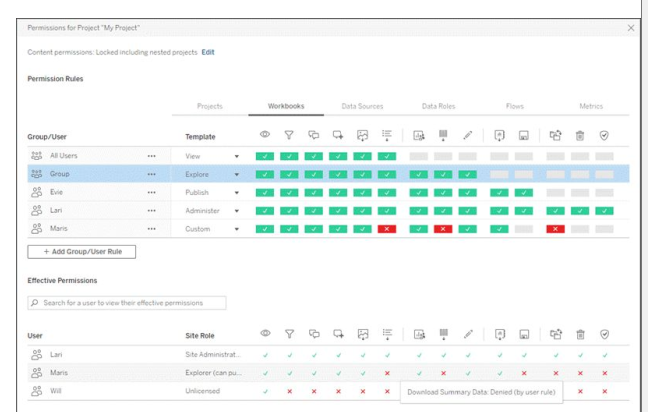
Authorization answers “what are you allowed to do?”. It works on two levels:
- Content: who can view, explore, download, publish or delete projects, workbooks and data sources. In Tableau Server this is set per project with permission templates (View, Explore, Publish, Administer) for users and groups.
- Data (row-level security): two users open the same dashboard and see different rows. For example, a regional manager sees only their region.
Give permissions to groups, not individual users, and lock them at the project level. Per-user exceptions quickly turn into a mess nobody can audit.
BI server
The server hosts published content and does the heavy lifting: rendering views, refreshing extracts, sending subscriptions.
| SAP BusinessObjects | Tableau Server | |
|---|---|---|
| Web layer | Web/app server (IIS or Tomcat with BO Java components) | Gateway |
| Core services | CMS, job and processing servers | User tier: VizPortal, VizQL Server, Data Server, Ask Data, Metadata Services |
| Background work | Job servers | Management tier: Data Engine, Backgrounder, Prep Conductor, Elasticsearch/Cache Server/SOLR, Cluster Controller |
| Storage | FileStore folders, system repository database | Storage tier: Repository, File Store |
You don’t need to memorize these services as an analyst. But when a dashboard is slow or an extract refresh fails, knowing that the Backgrounder runs refreshes and VizQL renders views tells you where to look.
Connection to database or service
A BI tool connects to two kinds of sources:
- Files: Excel, text/CSV, JSON, PDF, spatial and statistical files
- Servers: Tableau Server, Microsoft SQL Server, MySQL, Oracle, Amazon Redshift and dozens more
For a database you enter the server, port and database name, then sign in with a username and password. Require SSL encrypts the connection, and Initial SQL runs a statement every time the connection opens.
Use a dedicated read-only service account for BI connections, not your personal login. Reports keep working when you change your password or leave the company.
Visualization templates and tables
Every BI tool ships with a gallery of chart types: Tableau’s Show Me panel and Power BI’s Visualizations pane. Both include bar, line and area charts, maps, pie charts, scatter plots, treemaps, tables and more. Power BI can even run R and Python visuals.
Most business questions are answered with a bar chart, a line chart and a table. Reach for exotic chart types only when they make the answer clearer.
Semantic layer
The semantic layer turns raw tables into a model business users understand: tables are joined, fields are renamed, and relationships are defined once.
- In Tableau you join tables in the data source (inner, left, right, full outer).
- In Power BI you build a data model with relationships between fact and dimension tables.
Every report built on a good semantic layer uses the same joins and the same definitions. Without one, each analyst re-joins the tables their own way, and the numbers stop matching.
Dimensions, metrics, calculated fields, filters, hierarchies, parameters
| Concept | What it is | Example |
|---|---|---|
| Dimension | Something you group or slice by | Customer name, segment, order date, ship mode, country |
| Metric (measure) | A number you aggregate | Sales, profit, discount, quantity |
| Calculated field | A new field defined with a formula | DATEDIFF('day', [Order Date], [Ship Date]) = days to ship |
| Hierarchy | Dimensions stacked for drill-down | Country → Region → State → City → Postal code |
| Parameter | A user-controlled input value | A “New quota” of 500,000 for a what-if analysis |
| Filter | Limits which data is shown | Region: Central, East, South, West |
These six concepts exist in every BI tool under slightly different names. Once you understand them, switching from Tableau to Power BI or Looker is mostly learning a new UI.
Mailing (email, shared folders)
BI servers deliver reports to people who don’t open dashboards themselves: by email (with the image in the body and PDF or CSV attachments) or by dropping files into a shared folder.
A well-timed email with the three numbers a manager cares about often gets more use than a beautiful dashboard nobody opens.
Schedule
Schedules run tasks automatically: extract refreshes (reload data into the BI tool) and subscriptions (email a report). Each schedule has a frequency (every 15 minutes, hourly, daily, weekly), an execution mode and a next run time.
Schedule refreshes after your data warehouse finishes loading, not before. Otherwise the dashboard shows yesterday’s data all day.
Alert
Alerts send an email when a metric crosses a threshold, for example “Sales is above or equal to 170,000”. You choose the condition, threshold, subject, how often to send and the recipients.
Alerts flip BI from “go and check the dashboard” to “the dashboard tells you when something happens”. Use them for the few metrics that really need action.
API
BI servers can be automated from code. Tableau has a REST API and the tabcmd command-line tool:
tabcmd login -s https://tableau.example.com -u username -p <password>
tabcmd createproject -n "Work Football Team" -d "Tracks the goals scored by players in the work football team, Tableau FC"
Anything you do by clicking in the admin UI (creating projects, publishing workbooks, refreshing extracts, managing users) can be scripted. Keep credentials in a secrets store, never in a script.
Statistical methods and data science
BI tools include built-in analytics: average and median with 95% confidence intervals, trend lines, forecasts and clusters. For example, Tableau can forecast 15 months of monthly sales from the history, detect a 12-month seasonal pattern, and show the confidence band around the prediction, with a quality rating for each segment.
Built-in forecasts are good for a quick look. For anything the business will plan budgets on, build and validate the model properly, then show the results in BI.
Python/R integration
When built-in functions aren’t enough, BI tools can call Python or R. In Tableau a calculated field sends data to a Python or R service and gets results back. This example scores the sentiment of customer comments with the VADER library:
SCRIPT_REAL("
from vaderSentiment.vaderSentiment import SentimentIntensityAnalyzer
vs = []
analyzer = SentimentIntensityAnalyzer()
for i in range(0, len(_arg1)):
    a = analyzer.polarity_scores(_arg1[i])['compound']
    vs.append(a)
return vs
", ATTR([Comment Text]))
Each comment gets a score, and the table is colored from green (positive, e.g. “This is an awesome product”) to red (negative, e.g. “Customer service was unresponsive”).
Server and client logs
Both the server and the client write detailed logs. On Tableau Server, the logs of each service (the Backgrounder, Tomcat and others) show every scheduled job, refresh and error with a timestamp.
When an extract refresh fails or a dashboard is slow, the logs are the first place to look. Admins also analyze them to find unused dashboards and heavy queries.
This lesson is for members only
Join Surfalytics to unlock all 8 lessons in this module, plus every module, project, mock interview, and the private community.
7-day free trial · Cancel any time