
Lesson 07
All You Need to Know About Data Visualisation
Master data visualization essentials: chart types, color theory, accessibility, and dashboard design principles for data analysts.
All You Need to Know About Data Visualisation
Chart types, color theory, accessibility, dashboard design.
Books worth reading
- The Big Book of Dashboards: Steve Wexler, Jeffrey Shaffer, Andy Cotgreave
- Information Dashboard Design: Stephen Few
- Storytelling with Data: Cole Nussbaumer Knaflic
- How Charts Lie: Alberto Cairo
- The Functional Art: Alberto Cairo
If you read only one, start with Storytelling with Data. The Big Book of Dashboards is the best reference for real business scenarios.
A bit of history
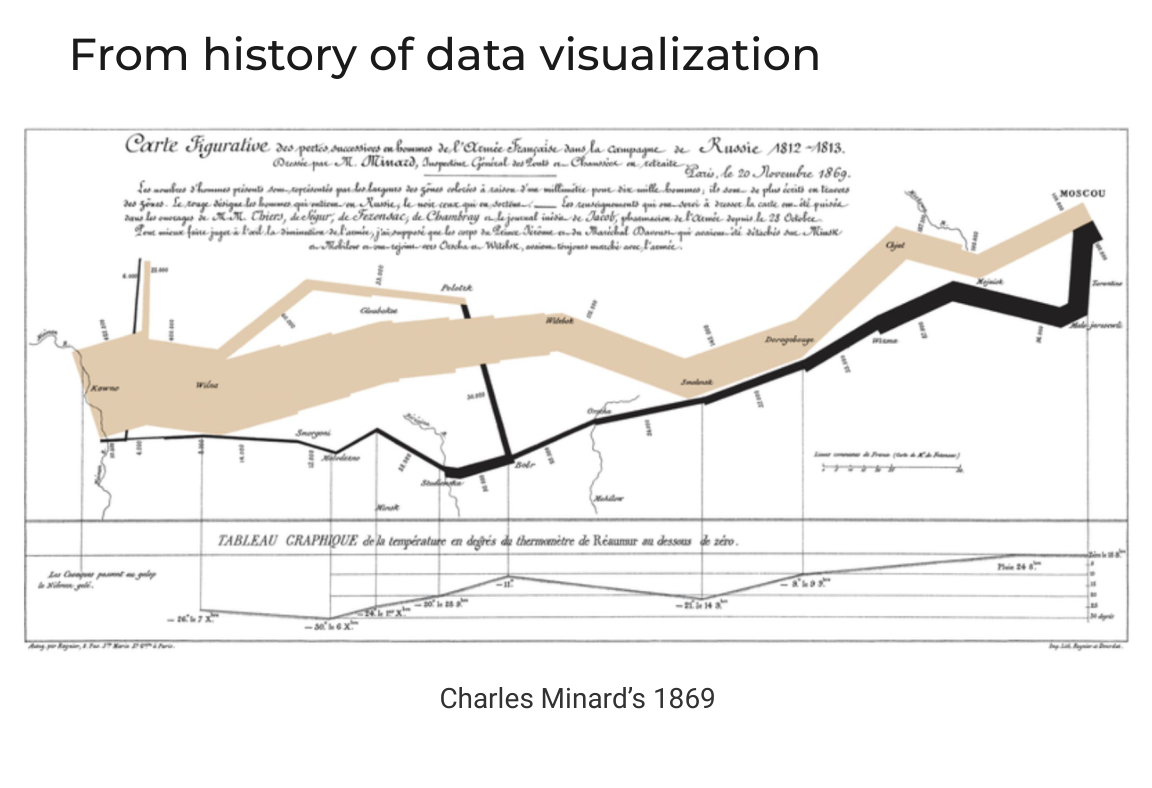
- Charles Minard, 1869: the map of Napoleon’s Russian campaign of 1812–1813. One picture shows six variables: army size (band width), location, direction of movement (beige toward Moscow, black on the way back), dates, and the temperature during the retreat. It has been rebuilt in Tableau Public many times.
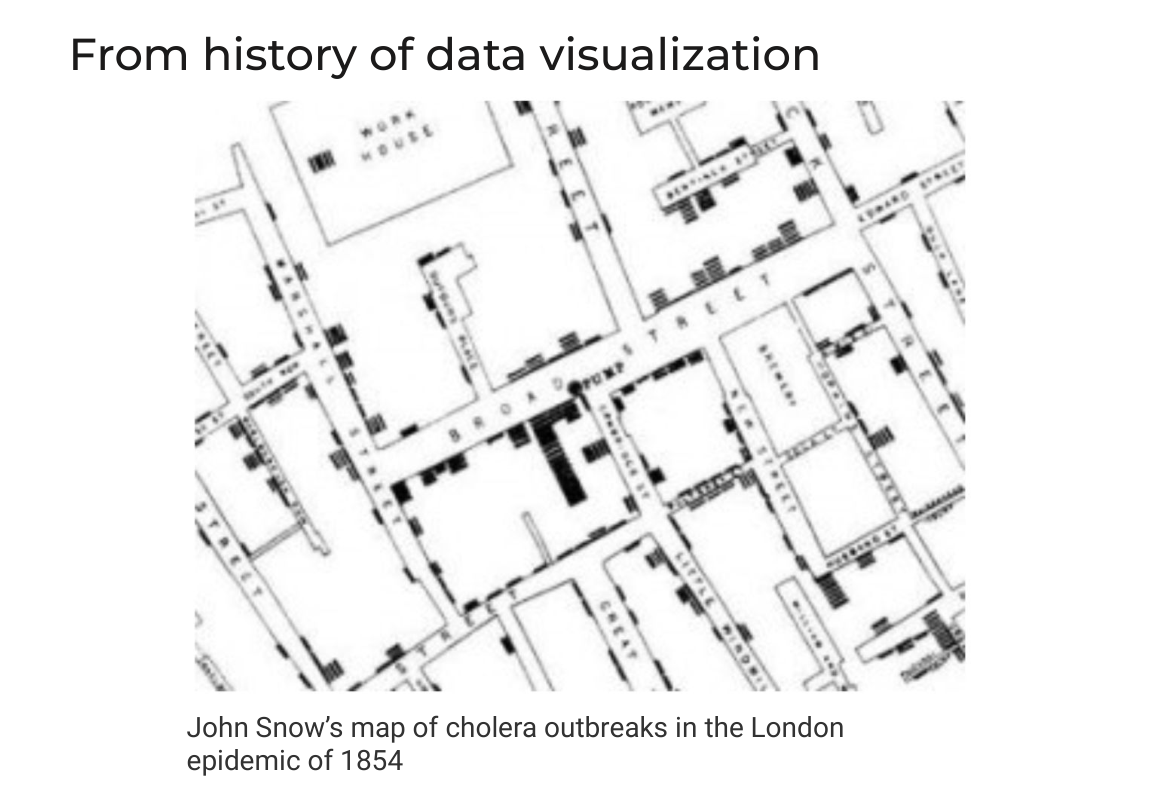
- John Snow, 1854: a map of cholera deaths in London. Each death is a bar drawn on the house where it happened. The deaths cluster around one water pump on Broad Street, which pointed to contaminated water as the source of the outbreak.
Both are classics because the chart answered a real question that the raw numbers hid.
Why visualize?
Three quick exercises from the lesson:
- “How many times does 89 appear?” In a 15×16 grid of numbers you have to scan every cell. Color the 89s red and you see all three instantly. Color does the search for you.
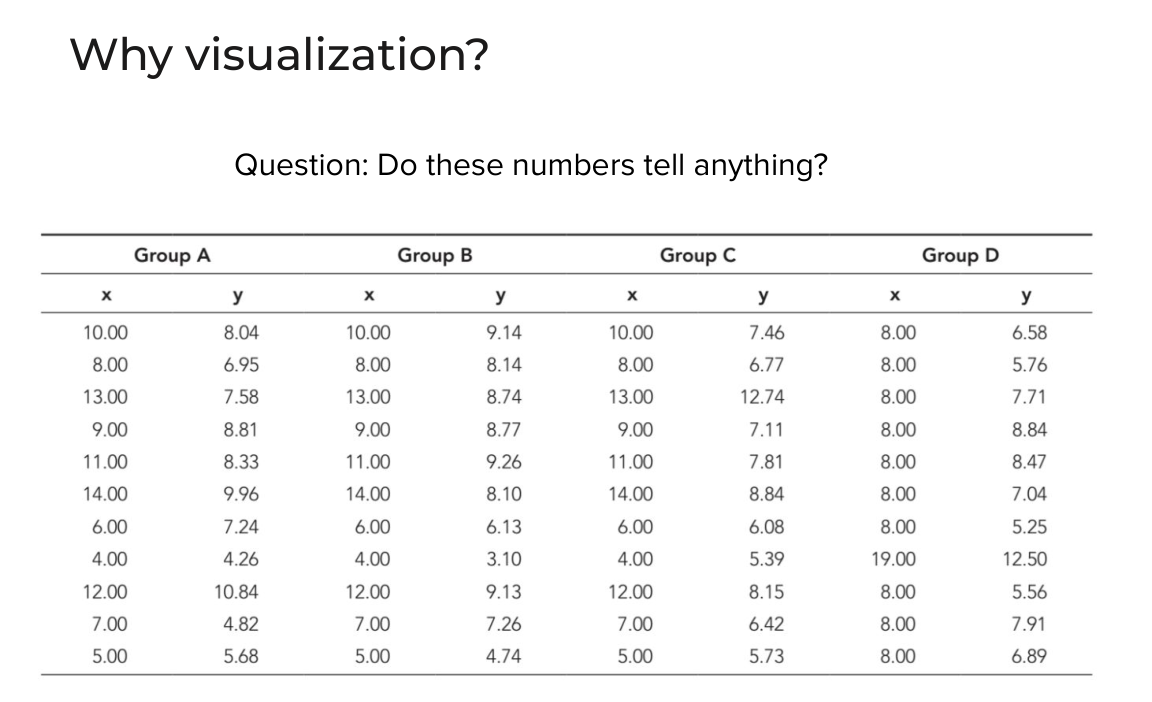
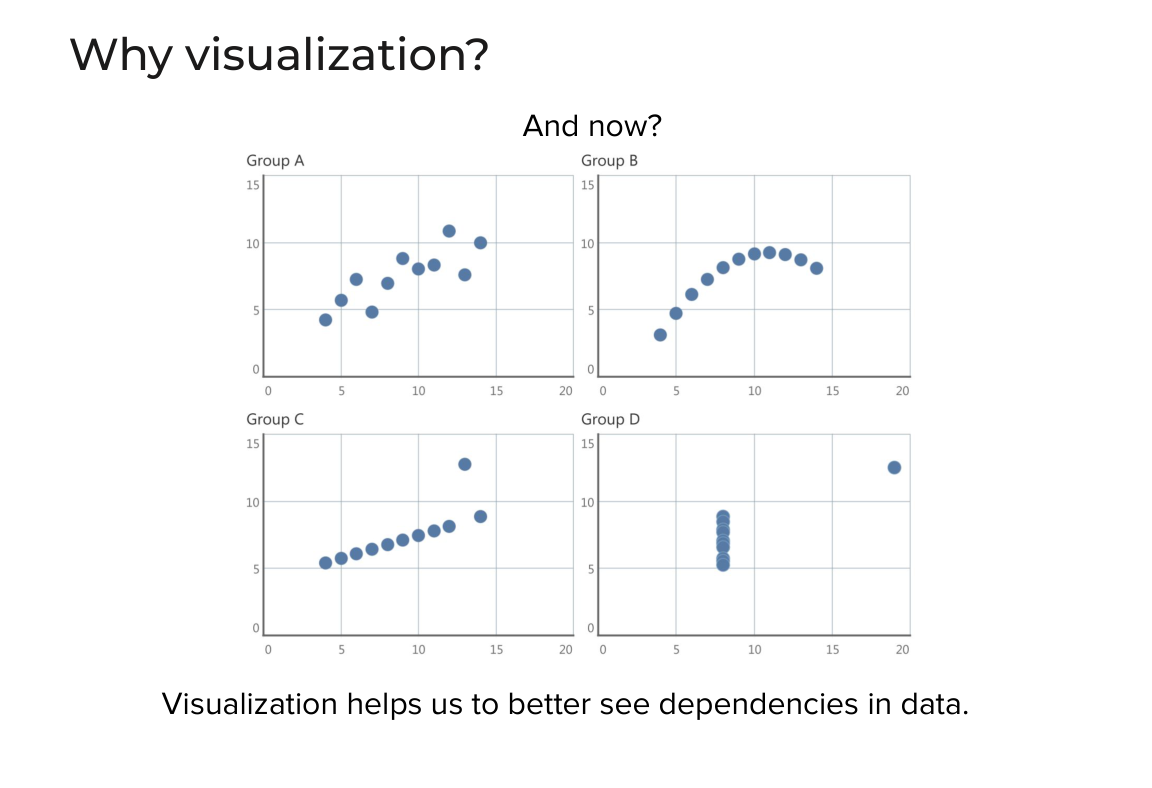
- “Do these numbers tell anything?” Four groups of x/y pairs (Anscombe’s quartet) have almost the same mean, variance and correlation. On a scatterplot they look nothing alike: a noisy linear trend, a curve, a perfect line with one outlier, and a vertical cluster with one extreme point. Visualization shows dependencies that summary statistics hide.
- “What’s with the sales?” A table of quarterly sales by category over four years is 48 numbers nobody can read. As a line chart you see at once that Technology leads but is volatile, Furniture slowly declined, and Office Supplies stays the lowest. Visualization lets you take in more information at once.
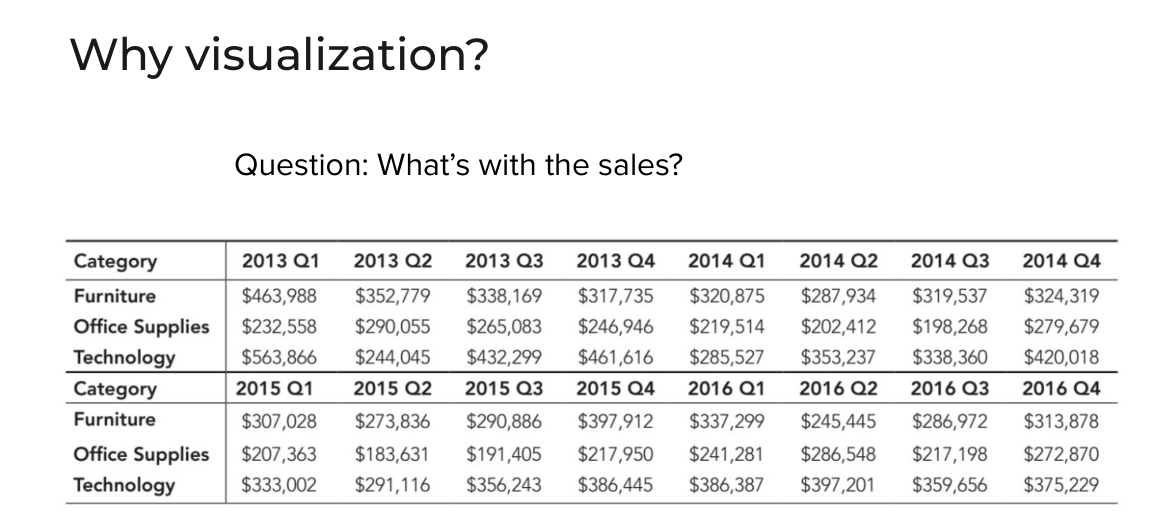
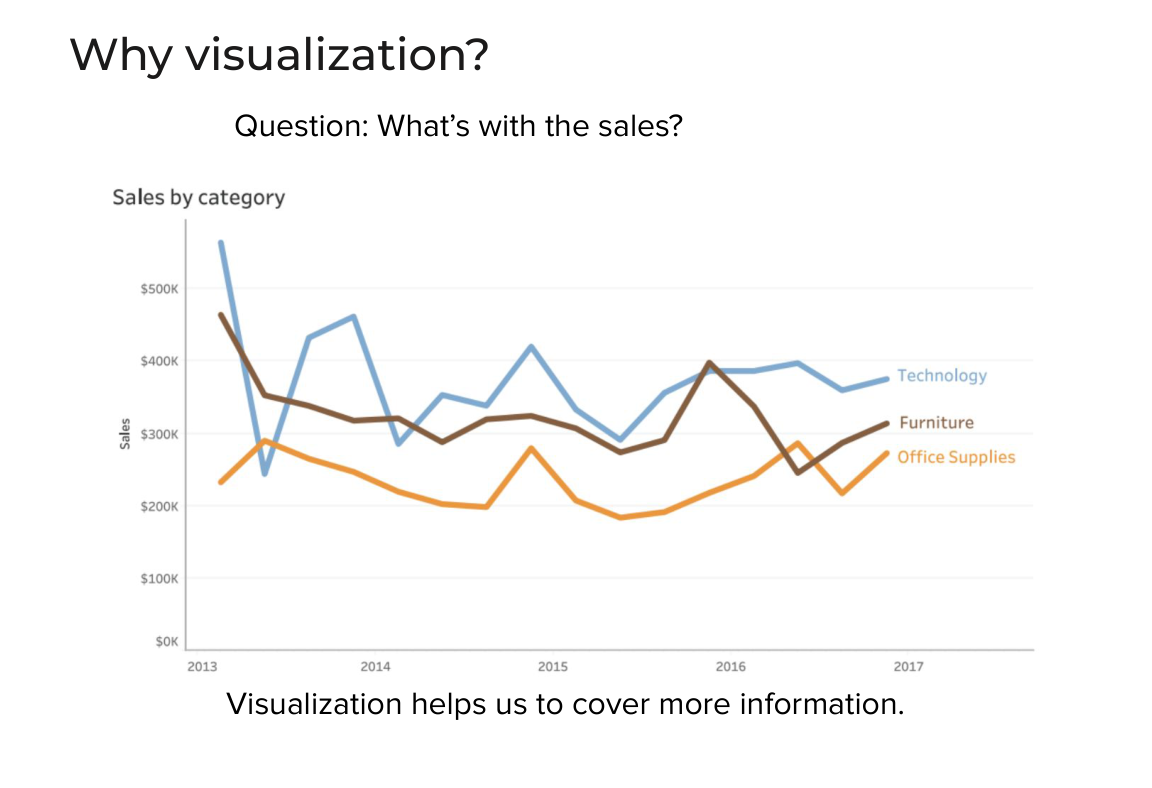
Chart types
| Chart | Use it for | Example |
|---|---|---|
| Bar chart | Comparing values across categories | Sales by region: West, East, Central, South |
| Line chart (time series) | Trends over time | Sales by segment, 2012–2015 |
| Scatterplot | Relationship between two measures | Profit vs sales per product |
| Box and whisker plot | Distribution: min, Q1, median, Q3, max; the box is the interquartile range (IQR) | Order values per category |
| Dot plot | Comparing several groups within each category | Sales by ship mode for Consumer, Corporate, Home Office |
| Filled map (choropleth) | A measure by region, shown with color intensity | Sales by US state |
| Symbol map | Points placed by latitude and longitude, sized or colored by a measure | Earthquakes around the world |
| Table | Exact values when people need to look them up | A small grid of sales numbers |
| Highlighted table (heatmap) | A table with color added so high and low values stand out | The same grid, colored by value |
| Bullet graph | Actual vs target against qualitative ranges (bad / satisfactory / good) | KPI performance against plan |
| Sankey | Flows between stages and where they drop off | Lead → Opportunity → Qualified → Sold → Retained, with rejection reasons at each step |
Avoid pie charts
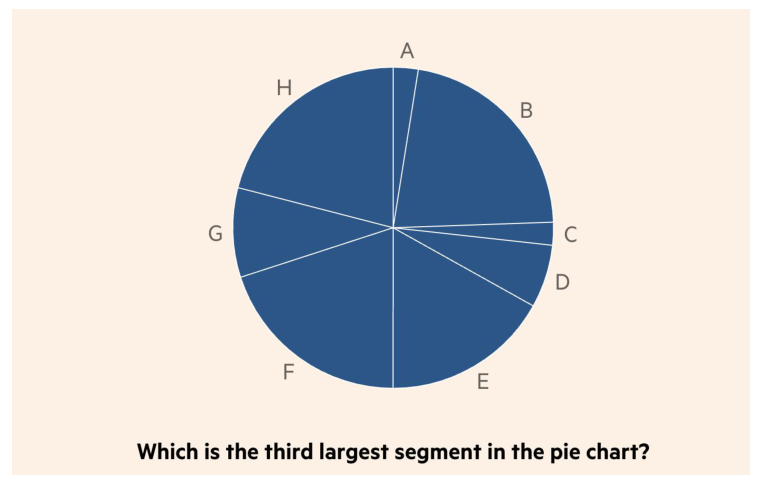
Quiz: which is the third largest segment? The slices are close in size, so most people have to guess. People are bad at comparing angles and areas, so with more than two or three slices a pie chart is hard to read. A sorted bar chart answers the same question at a glance.
When in doubt
If you don’t know which chart to pick, use a bar chart for categories or a line chart for time. They cover most business questions and everyone can read them.
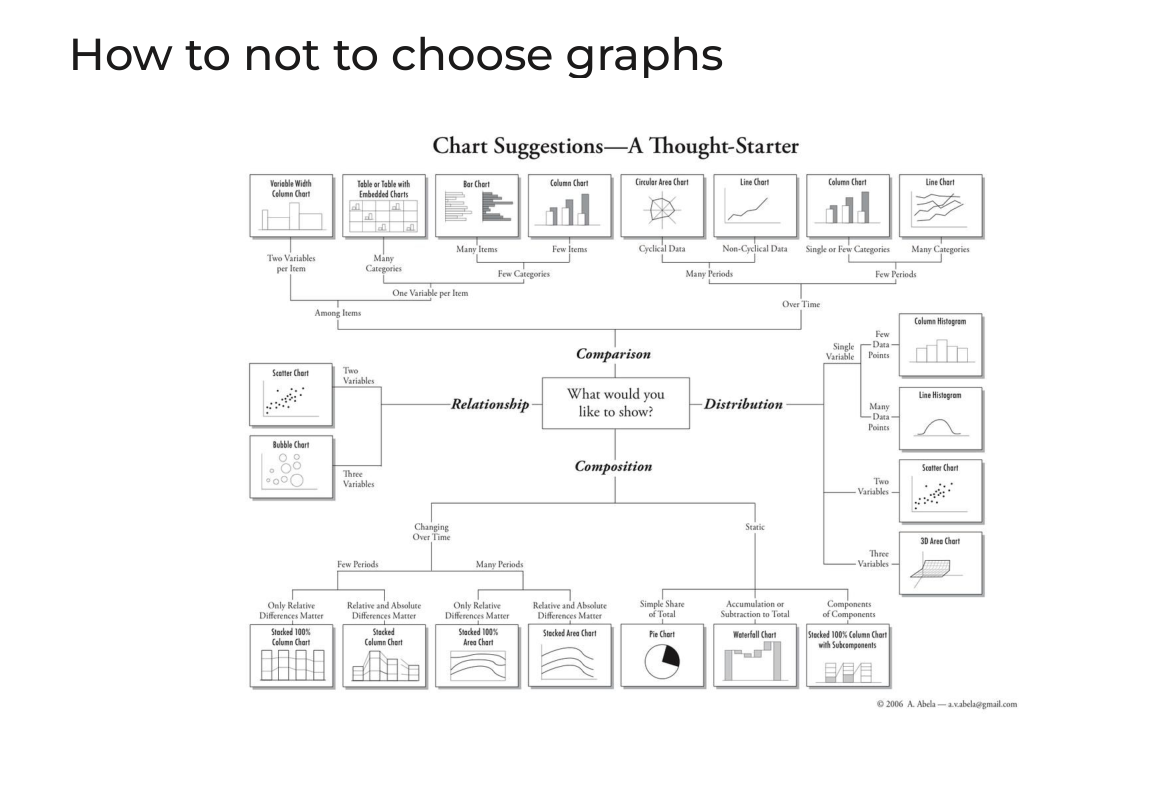
For a more structured choice, Andrew Abela’s Chart Suggestions — A Thought-Starter begins with one question: what would you like to show?
| Goal | Typical charts |
|---|---|
| Comparison, among items or over time | Bar / column chart, line chart, table with embedded charts |
| Relationship between variables | Scatter chart (2 variables), bubble chart (3 variables) |
| Distribution | Histogram, scatter chart |
| Composition, static or changing over time | Stacked bar / column, stacked area, waterfall |
The FT also publishes an interactive Visual Vocabulary: pick what you want to show (deviation, correlation, ranking, distribution, change over time, part-to-whole, magnitude, spatial, flow) and it lists suitable chart types.
Want to test your chart-reading skills? Try the Friday charts quiz from the FT.
Beyond charts: preattentive attributes
The brain picks up some visual properties before you consciously look for them. Use them to point the reader to what matters:
- Form: orientation, length, width, size, shape, curvature, added marks, enclosure
- Color: color value (lightness), color hue
- Position: position on the page, spatial grouping
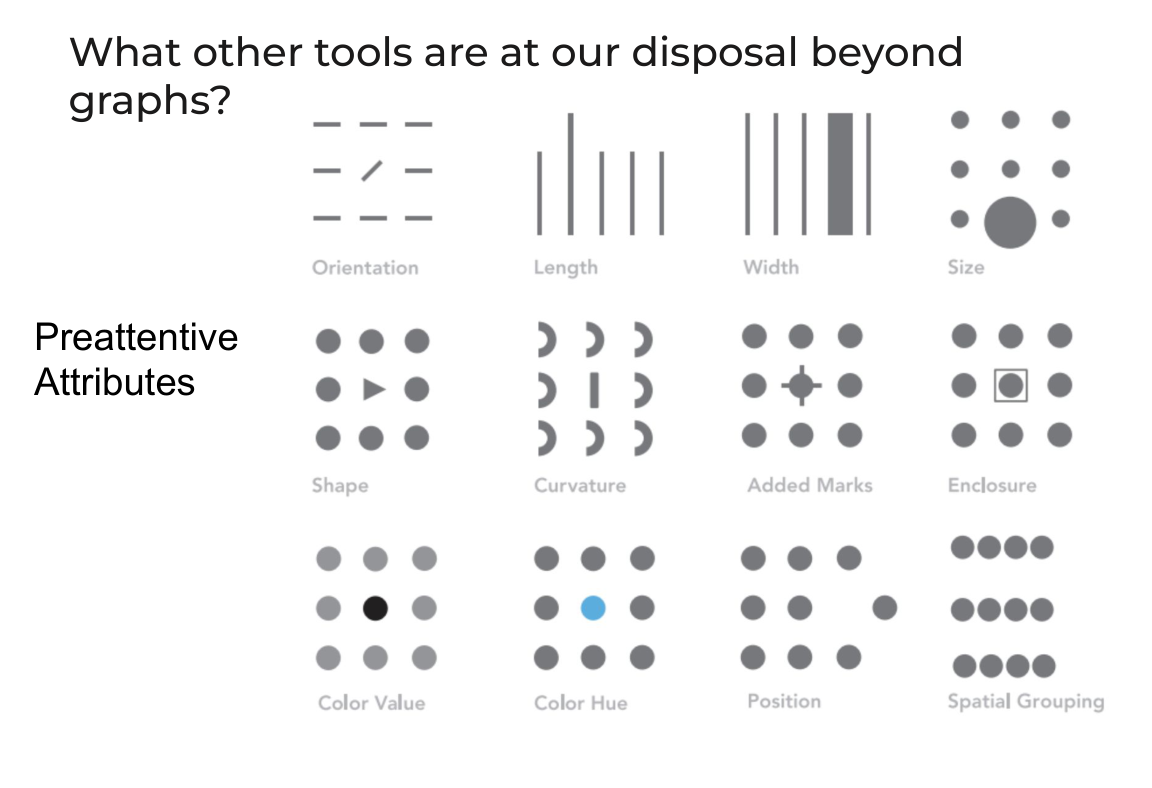
Use one attribute to highlight one thing. If everything is bright and bold, nothing stands out.
Color and accessibility
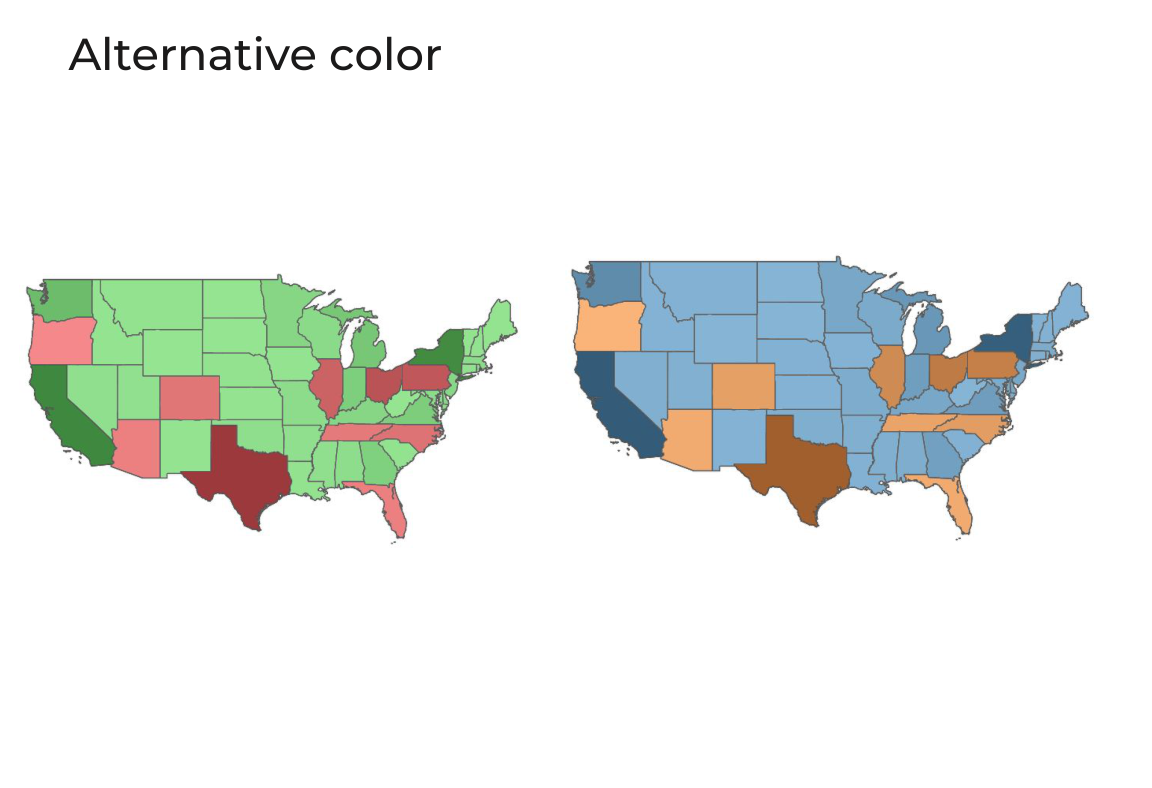
About 1 in 12 men has some form of color blindness, most often red-green. The slides show color blindness test plates and a red/green heatmap: with normal vision there are clear reds and greens, while a color-blind reader sees similar olive-brown shades everywhere.
- Don’t encode good/bad with red vs green alone.
- Use a color-blind-safe pair such as blue vs orange. The same US map in red/green and in blue/orange carries the same meaning, but only the second works for everyone.
- Keep the palette small and use color on purpose, not as decoration.
Dashboards: bad vs good
The lesson walks through real dashboards from SAP BusinessObjects and MicroStrategy: dense tables of KPIs (orders, basket value, gross and net revenue, discounts, COGS, PC1) with yesterday, day-over-day, month-to-date and forecast columns, plus pages of small line and area charts. Then it compares bad and good examples.
| Bad dashboards | Good dashboards |
|---|---|
| Speedometer gauges that take a lot of space to show one number | Bullet graphs or bars with a target line |
| Many unrelated widgets with no clear question | Built around one goal, grouped into logical sections |
| Rainbow colors, stacked charts with a dozen categories, treemaps with unreadable labels | Muted base color with one highlight color |
| Red/green everywhere | A color-blind-safe palette and a clear legend (e.g. “goal met / goal not met”) |
| Numbers without context | Each KPI shown with its target and trend |
Good examples from the lesson:
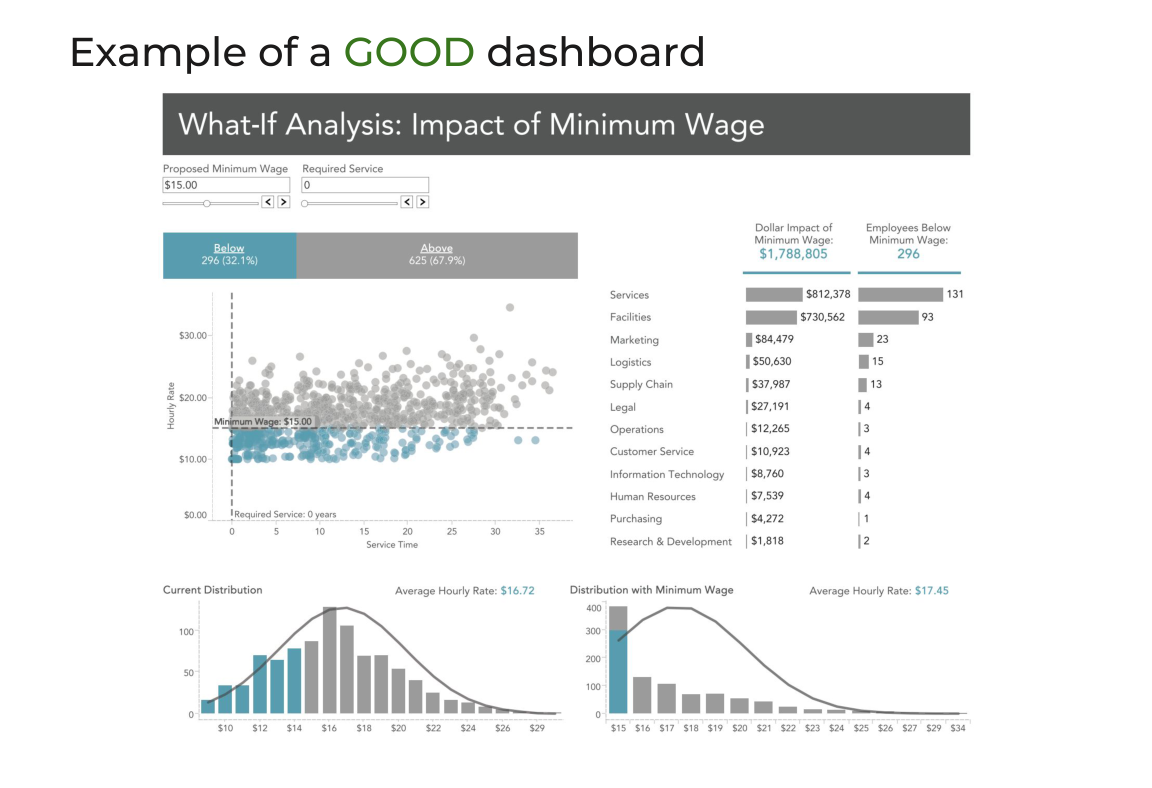
- What-if analysis: impact of minimum wage. Controls for the proposed wage, a scatterplot of employees below and above it, cost impact by department, and the distribution before and after.
- Mobile YTD / YoY sales. Bars for the current year with a marker for the previous year, and cumulative lines per region. Simple enough for a phone screen.
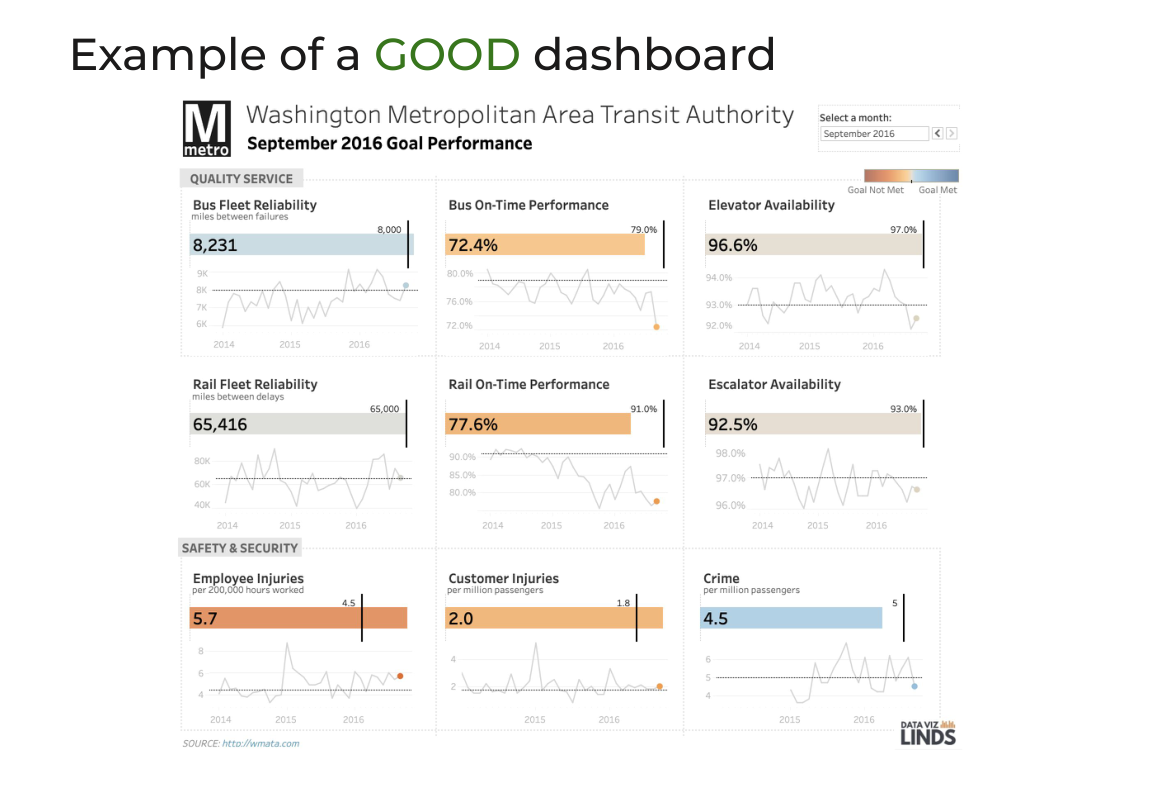
- Washington Metro goal performance. Each KPI is a big number plus a bar against its target and a small trend line. Color shows only whether the goal was met.
How users read dashboards
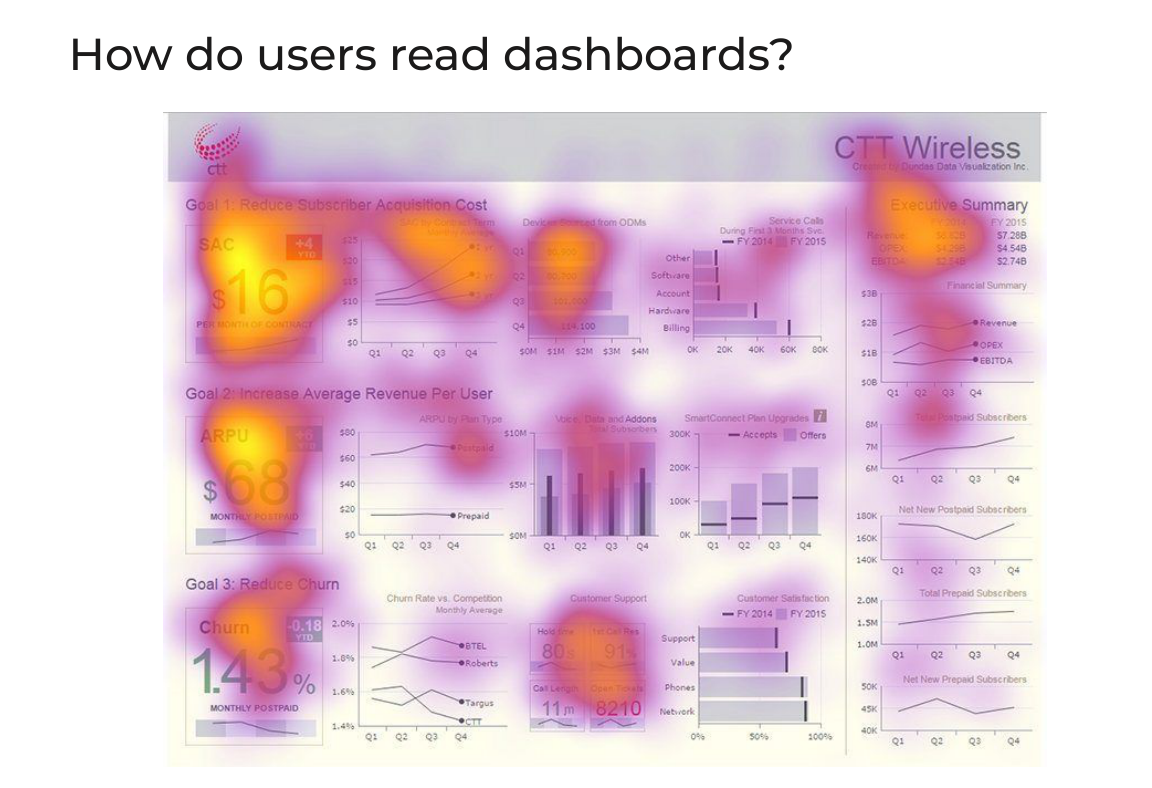
Eye-tracking heatmaps show that people look at the top left first and are drawn to big numbers. Put the most important KPI there, then lay out the rest in the order you want it read.
Weekly Business Review (Amazon style)
At Amazon the core dashboard is not a pretty picture. It is a WBR table: each KPI is a row followed by its comparison, with monthly columns (Month 1, 2, 3 + YoY %) and weekly columns (Week 1–4 + WoW %). Real ones are large Excel or Tableau reports with charts for the last 6 weeks and 6 months, and a table that puts weeks, months, MTD, QTD, YTD and TTM side by side.
| Term | Meaning |
|---|---|
| DoD | Day over Day: today vs yesterday, in % |
| WoW, MoM, QoQ, YoY | The same idea for week, month, quarter, year |
| MTD | Month To Date: from the start of the current month to today |
| QTD, YTD | The same idea for quarter and year |
| TTM | Trailing Twelve Months: the last 12 full months |
| bps | Basis points: 1 bps = 0.01 percentage point, used for changes in rates |
This format is worth knowing: it shows up in interviews and in real jobs, and you can rebuild it in any BI tool.
Stephen Few’s approach
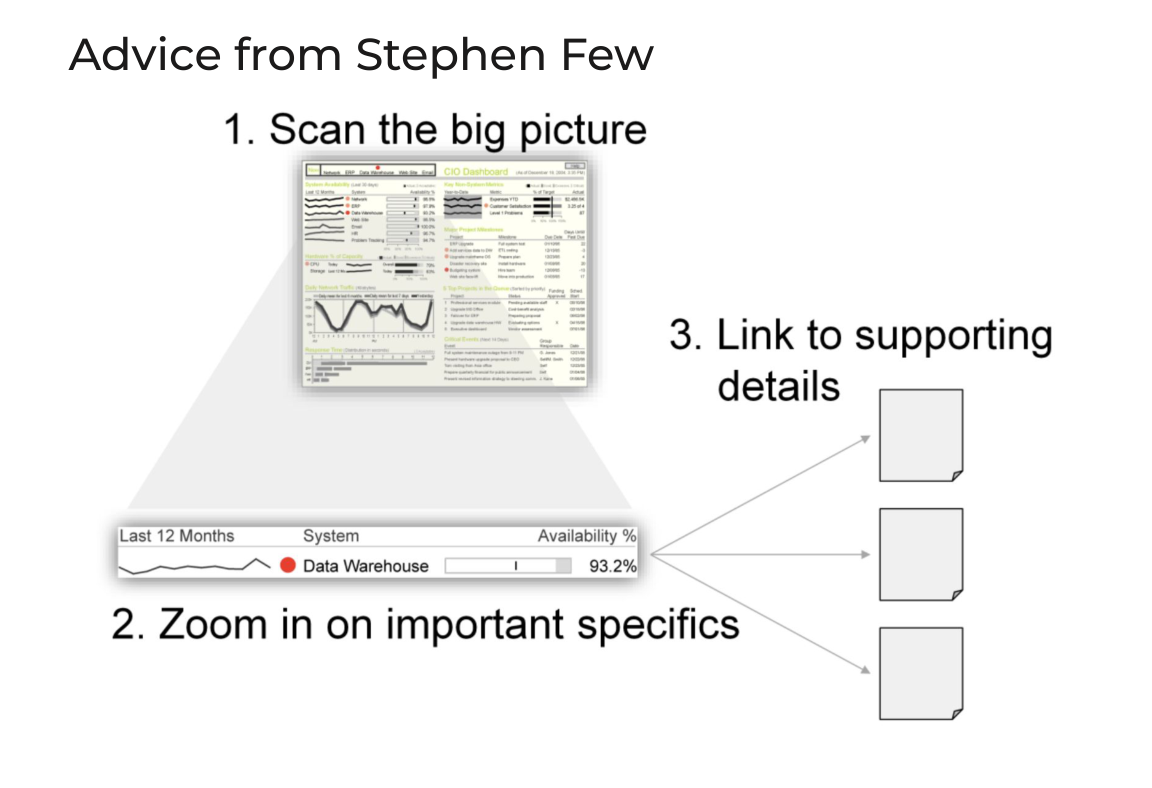
- Scan the big picture: the dashboard gives an overview on one screen.
- Zoom in on important specifics: one row (for example Data Warehouse availability: 93.2%, with a trend line and a red status dot) tells the reader where to look.
- Link to supporting details: drill down into detailed reports for the “why”.
Dashboard canvas
Before you build a dashboard, fill in the canvas. The numbers give the order:
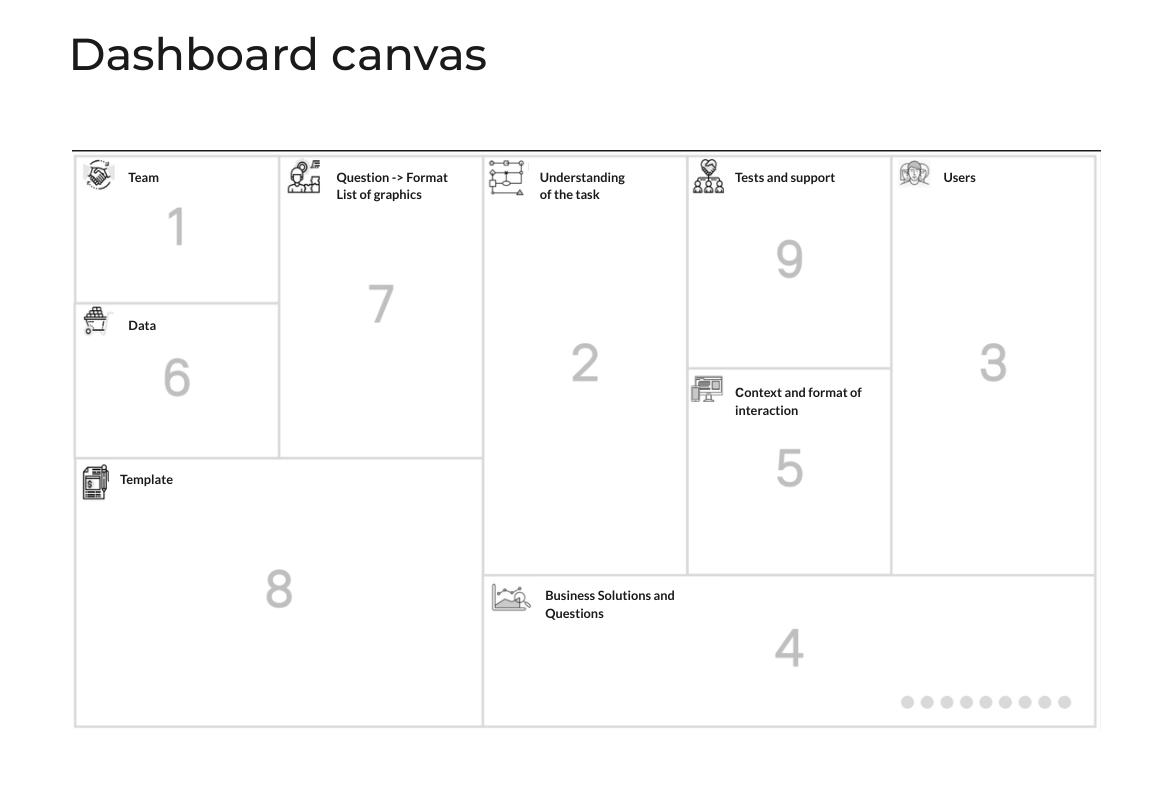
| # | Block | Question it answers |
|---|---|---|
| 1 | Team | Who builds and owns the dashboard? |
| 2 | Understanding of the task | What problem are we solving? |
| 3 | Users | Who will use it, and how comfortable are they with data? |
| 4 | Business decisions and questions | Which decisions will it support, and which questions must it answer? |
| 5 | Context and format of interaction | Desktop or mobile, daily check or weekly meeting, email or interactive? |
| 6 | Data | Which sources are available, and are they ready? |
| 7 | Question → format | Which chart answers each question (the list of graphics)? |
| 8 | Template | A layout sketch before building anything in the tool |
| 9 | Tests and support | How do we validate it with users and keep it working? |
Most bad dashboards come from skipping steps 2–4 and going straight to building charts.
This lesson is for members only
Join Surfalytics to unlock all 8 lessons in this module, plus every module, project, mock interview, and the private community.
7-day free trial · Cancel any time